Resize Images for LinkedIn: Profile, Banner, Post, and Company Page Sizes
- Profile picture: 400x400 (displays as circle, 200-300px depending on view)
- Background banner: 1584x396 (4:1 ratio)
- Post image: 1200x627 or 1200x1200 for square
- Free tool resizes with no account, no watermark
Table of Contents
LinkedIn is the one social platform where image quality directly affects your professional reputation. A pixelated headshot or a badly-cropped company banner tells potential employers, clients, and partners that you do not pay attention to details. The dimensions are specific and they differ from every other platform.
Our free resizer has LinkedIn presets for every placement. Get the exact size right in 10 seconds instead of guessing in Canva or cropping in Paint.
Every LinkedIn Image Size in 2026
| Placement | Size (px) | Ratio | Notes |
|---|---|---|---|
| Profile Photo | 400 x 400 | 1:1 | Displays as circle, 100-300px depending on context |
| Background/Banner | 1584 x 396 | 4:1 | Very wide, design for landscape images |
| Post Image (Link) | 1200 x 627 | 1.91:1 | Standard link preview ratio |
| Post Image (Native) | 1200 x 1200 | 1:1 | Square takes up more feed space |
| Post Image (Portrait) | 1080 x 1350 | 4:5 | Maximum vertical size in feed |
| Company Logo | 300 x 300 | 1:1 | Displays small, keep it simple |
| Company Cover | 1128 x 191 | 5.9:1 | Even wider than personal banner |
| Article Cover | 1200 x 644 | 1.86:1 | Article header image |
LinkedIn's dimensions are unusual compared to other platforms. The personal banner at 4:1 is extremely wide. The company cover at nearly 6:1 is even wider. Standard photos do not fit these formats without significant cropping or a dedicated design.
For text-heavy images (infographics, data cards, quote graphics), check that text is readable after resizing. LinkedIn compresses images less than Instagram or Facebook, but small text on a 1584x396 banner can still become hard to read.
LinkedIn Profile Photo: Professional Quality at 400x400
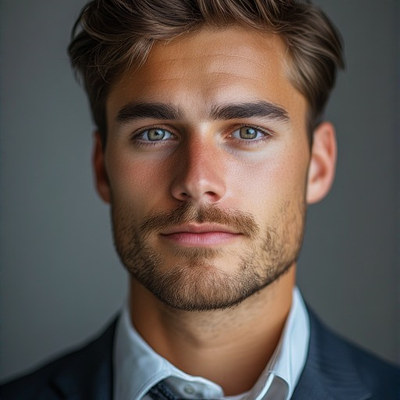
Your LinkedIn profile photo appears everywhere: search results, comments, messages, connection requests, and the "People also viewed" sidebar. It displays at different sizes in each context, from about 100px in comments to 300px on your profile page. Upload at 400x400 to look sharp at every size.
For professional headshots:
- Crop to show face and shoulders. Too much background space wastes the small circle
- Center your face. LinkedIn circles from the center, not from the face
- Use good lighting. A dark, grainy photo at 400x400 looks worse than a well-lit phone photo
- Solid or blurred background. Complex backgrounds are distracting at small sizes
If your headshot has a busy background, use our background remover to strip it, then add a solid background with our background adder, then resize to 400x400. This three-step workflow gives you a clean, professional headshot in about a minute.
For company logos as profile photos: use your logo mark (icon) rather than your full wordmark. A wordmark at 100px is unreadable in comment threads. If your brand only has a wordmark, use the first letter in your brand font and color instead.
Sell Custom Apparel — We Handle Printing & Free ShippingLinkedIn Background Banner: Designing for 4:1
The LinkedIn banner at 1584x396 is a challenging format. It is extremely wide and short, which rules out most standard photos. Portrait-oriented images are essentially unusable. Even landscape photos often do not have enough horizontal content to fill the frame.
What works well at 4:1:
- Cityscapes and skylines — naturally wide compositions
- Abstract gradients or patterns — look professional and scale to any width
- Text-based banners — your tagline, value proposition, or current role in large text
- Conference or team photos — wide group shots fill the format naturally
When using our resizer for the LinkedIn banner, Fit mode will show your complete image with solid-color bars. Cover mode will crop aggressively from the top and bottom. For photos, you almost always want Cover mode and should choose an image that works when the top and bottom are trimmed.
The profile picture circle overlaps the bottom-left corner of the banner (on desktop). Do not put critical information in that area, it will be hidden behind your headshot.
LinkedIn Post Images: Square vs Landscape
LinkedIn supports three image ratios in feed posts:
Landscape (1200x627) — Used for link preview images and shared articles. This is the OG image ratio, so if your website has proper Open Graph tags, LinkedIn pulls this size automatically when you share a URL.
Square (1200x1200) — Takes up more feed space than landscape. Better for standalone image posts (infographics, quotes, data cards). Engagement data suggests square images outperform landscape in the LinkedIn feed.
Portrait (1080x1350) — Takes up the most feed space. LinkedIn adopted this 4:5 format from Instagram. Best for text-heavy content, step-by-step graphics, and tall infographics.
For link previews specifically, you cannot control the ratio. LinkedIn pulls the OG image from your URL and displays it at 1.91:1. If your website has a square OG image, LinkedIn will crop it. Check how your URLs look with our LinkedIn OG image checker before sharing.
For native image posts (uploading directly, not sharing a link), use square or portrait for maximum visibility. Landscape images get lost in the feed because they take up less vertical space on mobile screens.
LinkedIn Company Page: Logo and Cover
Company pages have different dimensions than personal profiles:
Company logo: 300x300 square. This appears in search results, follower lists, and employee profile "Experience" sections. It displays as small as 40x40 in some contexts. Use a simple icon or lettermark. Detailed logos with thin lines or small text will be illegible.
Company cover: 1128x191 pixels. This is an almost absurdly wide ratio (5.9:1). Almost no photo will work without heavy cropping. Most companies use a designed banner with their tagline, product screenshot, or branded pattern.
For the company cover, designing specifically for this ratio is almost mandatory. Trying to resize a standard photo into 1128x191 produces an unusable sliver. Start with a blank canvas at 1128x191 and design within those constraints rather than trying to force an existing image into them.
If you need a quick solution: take a wide photo, use Cover mode in our resizer to crop to 1128x191, and use it as a minimal, photo-based cover. It will not be perfect, but it is better than the default LinkedIn pattern.
Resize for LinkedIn in Seconds
Drop your photo, pick a LinkedIn preset, download the perfect size. Free, private, no account.
Open Free Social Media ResizerFrequently Asked Questions
What size should a LinkedIn profile photo be?
Upload at 400x400 pixels. LinkedIn displays it as a circle at various sizes (100-300px depending on context). Center your face and use good lighting. The square upload is cropped into a circle, so avoid placing important details near the corners.
What is the LinkedIn banner size?
Personal profile banners are 1584x396 pixels (4:1 ratio). Company page covers are 1128x191 pixels (5.9:1). Both are extremely wide formats that require landscape-oriented images or custom-designed banners.
How do I resize a photo for LinkedIn without cropping?
Use Fit mode in our social media resizer. It scales your photo to fit within the LinkedIn dimensions without cutting any part. For the very wide banner format, Fit mode will show your photo centered with bars on the sides, which may look better than losing most of the image to cropping.
What is the best image size for a LinkedIn post?
For native image posts, use 1200x1200 (square) or 1080x1350 (portrait) for maximum feed visibility. For link preview images, use 1200x627 (landscape) which matches the Open Graph image standard.